Introduction
Not every customer has the same needs, and not every support ticket deserves the same response time. The businesses that get this right are the ones that use customer segmentation to treat different clients differently, on purpose. As an official Freshworks partner operating across the UAE and GCC, Vistar has helped organizations use Freshdesk to build smarter support systems that reflect the real value of each customer relationship. This guide shows you exactly how to do that.
What Is Customer Segmentation in Freshdesk?
Customer segmentation in Freshdesk means grouping your contacts or accounts based on shared attributes such as industry, location, subscription tier, ticket volume, or revenue contribution. Once your customers are segmented, you can route tickets differently, apply custom SLAs, personalize responses, and make sure your highest-value clients always receive priority attention.
Why Segmentation Matters for Support Teams
Without segmentation, every ticket enters the same queue and gets treated the same way. This creates two problems:
- High-value clients wait alongside low-priority tickets and feel underserved
- Support agents have no context about who they are dealing with, which makes personalization impossible
Segmentation solves both. It gives agents the context they need and gives your best clients the experience they expect.
How to Set Up Customer Segmentation in Freshdesk: A Step-by-Step Guide
Step 1: Define your segmentation criteria before touching the platform
Before you configure anything in Freshdesk, get clear on how you want to segment your customers. Common criteria include:
- Account type or subscription plan (for example, Enterprise, Growth, Starter)
- Industry or vertical (for example, retail, healthcare, logistics)
- Region or country
- Monthly or annual revenue contribution
- Ticket frequency or support history
Choose criteria that are meaningful to your business and that your support team can actually act on. Segmentation that does not change how agents behave is just labeling.
Step 2: Use Contact and Company fields to capture segment data
In Freshdesk, go to Admin, then Contact Fields or Company Fields. Here you can create custom fields to capture the attributes you defined in Step 1. For example, you can add a dropdown field called "Account Tier" with options like Platinum, Gold, and Standard. You can also add fields for industry, region, or any other attribute relevant to your segmentation model. Once these fields are created, your team can populate them manually, or you can sync data from your CRM automatically if you have an integration set up.
Step 3: Tag and populate your existing contacts
With your fields in place, go to the Contacts or Accounts section in Freshdesk and start tagging your existing customers. If you have a large database, use the bulk update feature to assign segment values to multiple contacts at once. You can also import a CSV file with updated field values to speed this up. The goal at this stage is to make sure every contact has the relevant segment data attached before you build any rules or workflows on top of it.
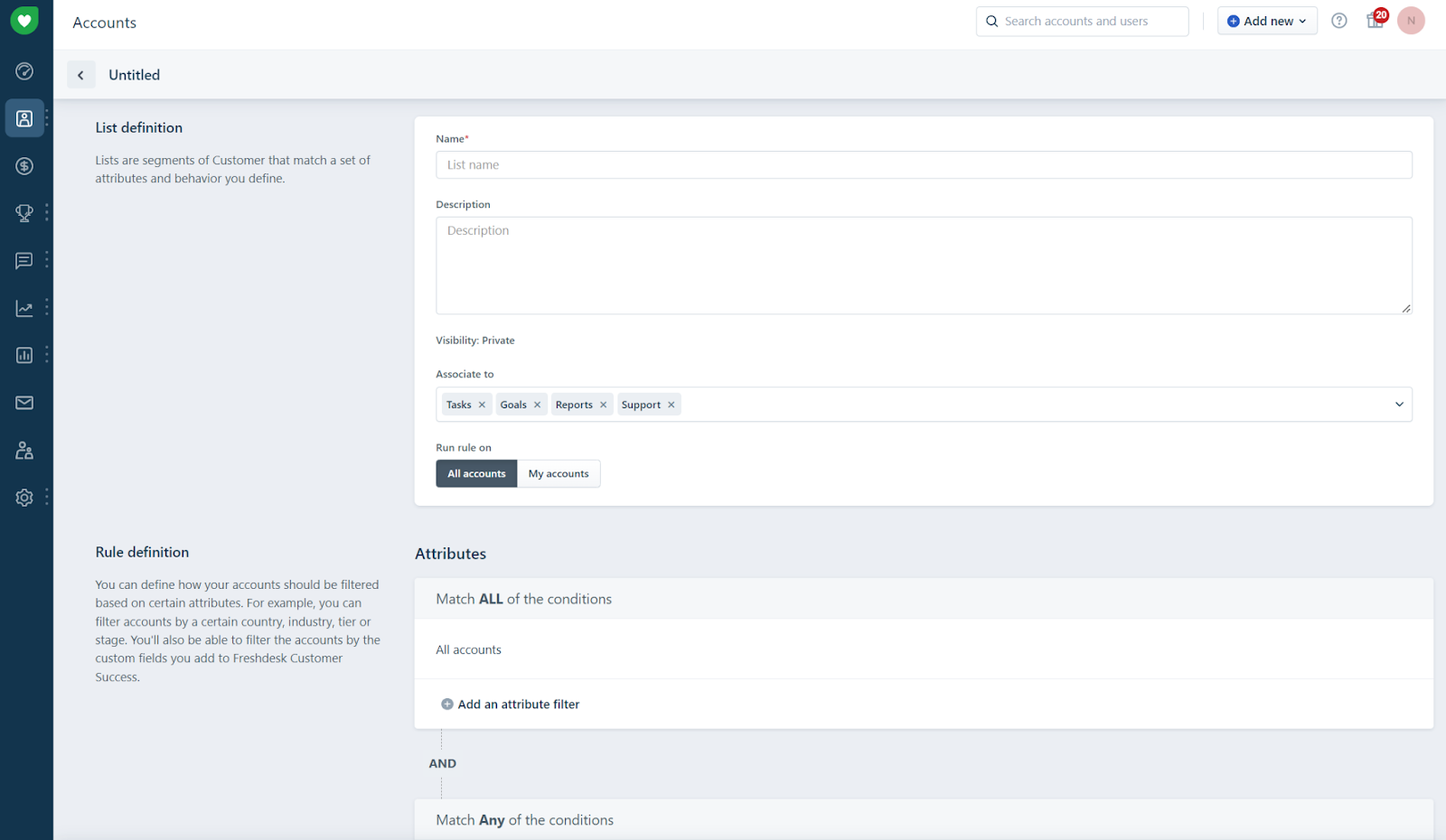
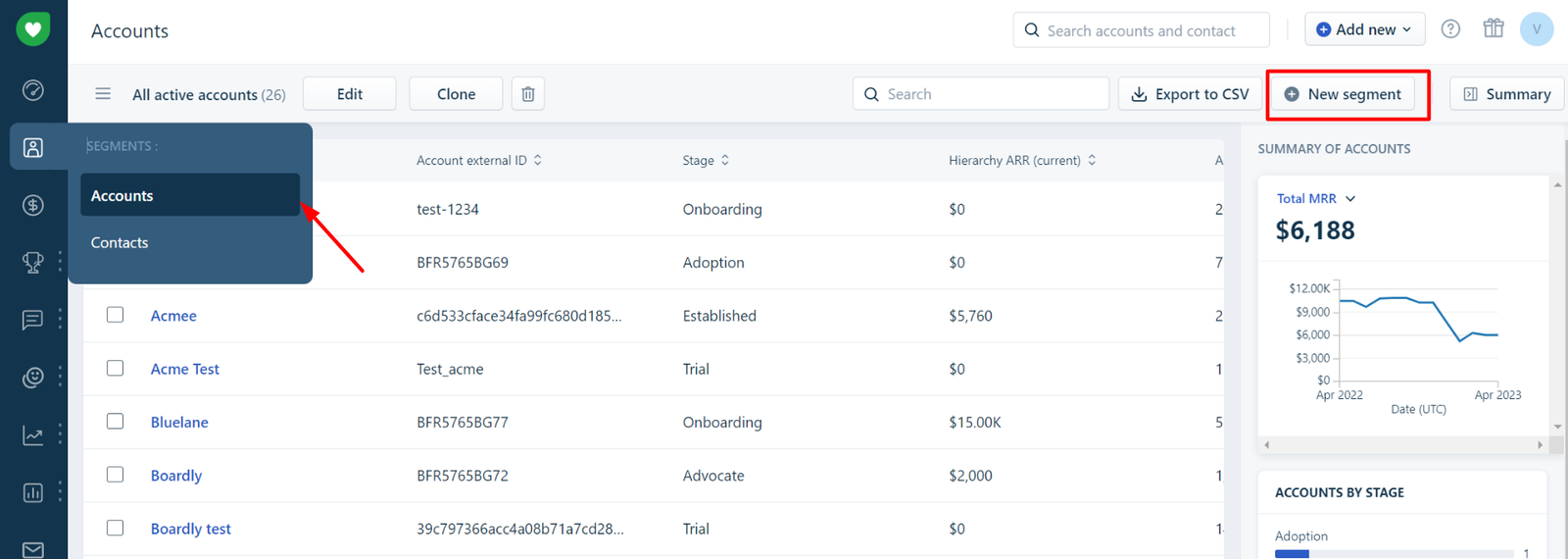
Step 4: Create segments using Freshdesk filters
Once your contacts are tagged, use Freshdesk's filter and segment functionality to create saved views for each customer group. In the Contacts section, apply filters based on your custom fields, for example, filter by Account Tier equals Platinum, and then save that view as a named segment. You can create as many segments as you need. These saved views make it easy for your team to pull up a specific customer group instantly, whether they need to check on all enterprise clients or review tickets from a specific region.
Step 5: Set up custom SLAs for each segment
This is where segmentation starts making a real operational difference. In Freshdesk, go to Admin, then SLA Policies. Create a separate SLA policy for each key segment. For your highest-value clients, set shorter response and resolution time targets. For standard accounts, apply your default SLA. You can configure Freshdesk to automatically apply the correct SLA policy based on contact or company attributes, so agents do not need to assign these manually. Every ticket from a Platinum account, for example, can automatically carry a two-hour first response target.
Step 6: Build ticket routing rules based on segments
Go to Admin, then Automation, and create routing rules that direct tickets from specific segments to the right agent groups. For example, tickets from Enterprise clients can be automatically assigned to your senior support team, while tickets from standard accounts go to your general queue. You can also set ticket priority automatically based on the customer segment. A ticket from a high-value account can be flagged as Urgent the moment it is created, without any manual intervention from your team.
Step 7: Personalize canned responses and email templates by segment
In Freshdesk, go to the Canned Responses section and create segment-specific response templates. Your tone, level of detail, and offered solutions can vary depending on who you are speaking to. For a high-value enterprise client, your response might include a dedicated point of contact and a faster escalation path. For a standard account, a well-written general response with self-service links may be appropriate. Personalization at scale becomes manageable when templates are built around segments rather than written from scratch each time.
Step 8: Use reports and dashboards to monitor segment performance
Go to the Reports section in Freshdesk and filter your data by customer segment. Track metrics like average first response time, resolution time, CSAT scores, and ticket volume broken down by segment. This tells you whether your high-value clients are actually receiving better service and whether your SLA targets are being met. Review these reports regularly and use the findings to refine your segmentation model and automation rules over time.
"One of the first things we do when we implement Freshdesk for a client is ask them to tell us who their top twenty percent of customers are. Most can answer that instantly. But when we look at their support setup, there is nothing in the system that reflects that knowledge. Segmentation closes that gap. It turns what your team already knows into something the platform can act on, every single time a ticket comes in."
How a Freshworks Partner Helps You Get This Right
Setting up segmentation in Freshdesk is straightforward when you know what you are doing. But most businesses do not struggle with the platform itself. They struggle with deciding how to segment, what rules to build, and how to get their team to actually use the system consistently. As a certified Freshworks partner, Vistar works with organizations across the UAE and GCC to design segmentation models that match how their business operates, not just how the software works out of the box. That includes configuring custom fields, building automation rules, integrating Freshdesk with existing CRMs, and training support teams to work with segments as part of their daily workflow.
Common Segmentation Mistakes to Avoid
- Creating too many segments: Start with three to five clearly defined groups. Too many segments make automation rules complicated and hard to maintain.
- Not keeping segment data updated: A contact tagged incorrectly is worse than a contact with no tag. Build a process for keeping your segment fields accurate as customers upgrade, downgrade, or change.
- Building rules without agent buy-in: If your support team does not understand why segments exist, they will work around them. Train your team alongside the configuration.
- Ignoring what the data tells you: If your reports show that high-value clients are still experiencing slow response times, revisit your SLA rules and routing logic.
Conclusion
Customer segmentation in Freshdesk is not a nice-to-have. For any business managing a mixed customer base, it is the difference between a support operation that reacts and one that is built to serve. When segments are configured correctly, your team stops treating every ticket the same and starts treating every client the way they deserve. Working with a certified Freshworks partner ensures your Freshdesk setup is built on a segmentation model that reflects how your business actually works, not a generic default configuration.
Ready to build a smarter support operation with Freshdesk?
Vistar is an official Freshworks partner serving businesses across the UAE, KSA, and the wider GCC region. Whether you are setting up Freshdesk for the first time or looking to get more from your existing setup, our team will help you build a support system your clients actually notice.
Get in touch with Vistar today and let us help you turn your support function into a competitive advantage.